![marq.svg]](https://help.marq.com/hubfs/Brand%20Logos/marq.svg)
Creating template categories and filters
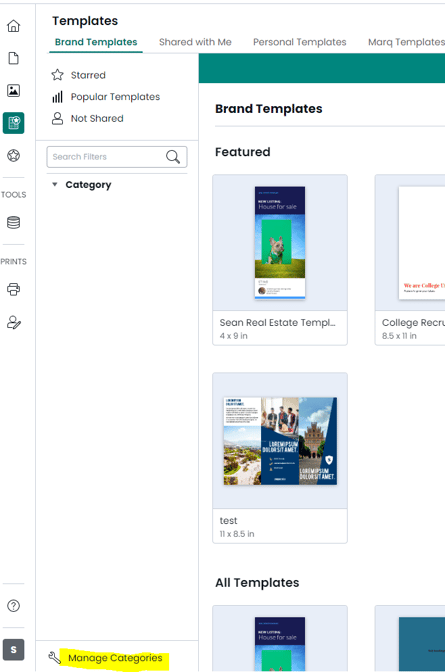
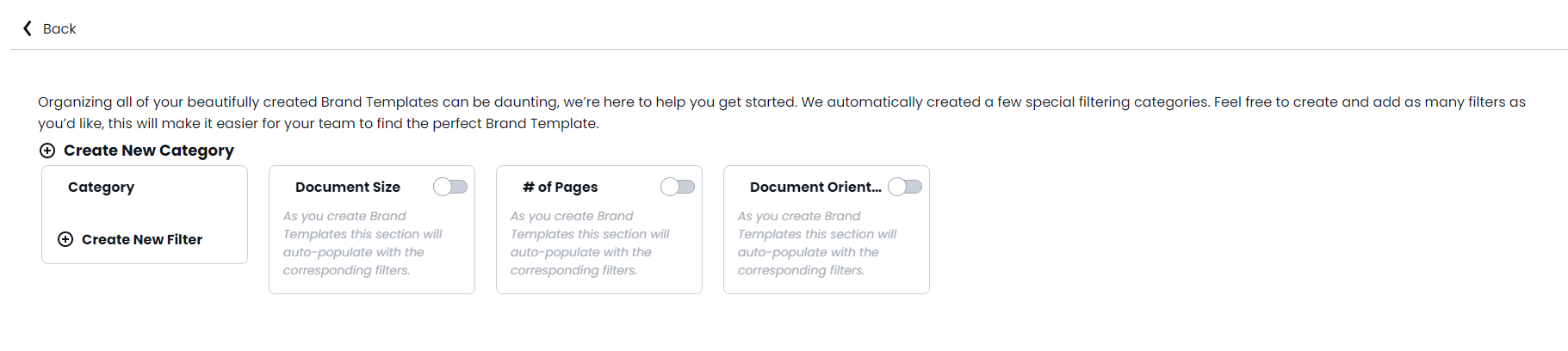
Navigate to the “Templates” tab in the left panel. Click the “Manage Template Categories” button in the bottom-left. We automatically have filters for project size, number of pages, and project orientation. Feel free to create and add as many filters as you’d like.
Some examples may include:
- Category (postcard, flyer, brochure, etc.)
- Season (summer, spring, fall, winter)
- Purpose (case studies, presentations, trade shows, etc.)
- Agent type (single agent, two agents, agent team, etc.)
Assigning templates to a filter.
Once you have template categories and filters set up, when
Adding a new template to a filter:
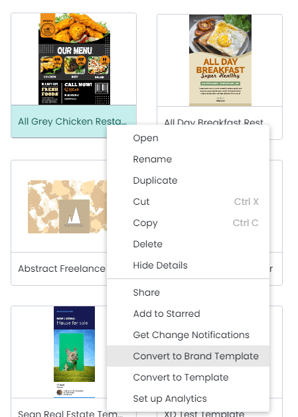
Adding a brand template to an existing filter:
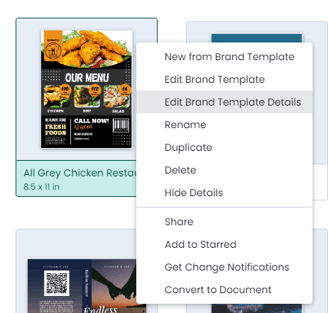
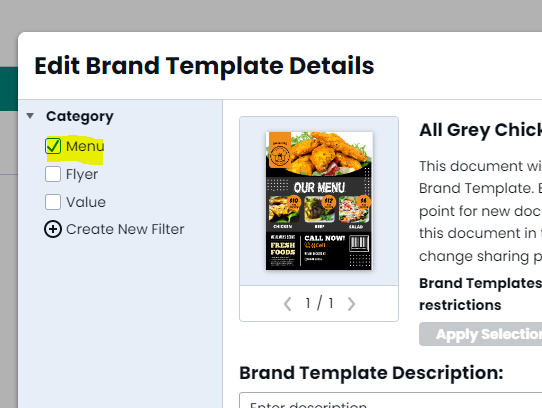
Once you have the brand template modal open, you can check any checkbox you wish to assign the template to. You can select multiple checkboxes.