![marq.svg]](https://help.marq.com/hubfs/Brand%20Logos/marq.svg)
Add shapes
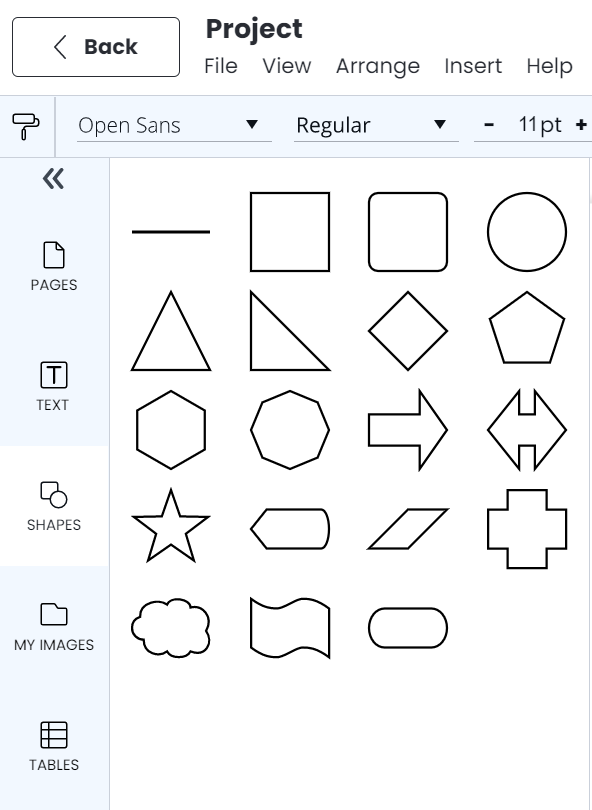
You can add shapes by clicking the shape icon in the left content pane. Select a shape you want and drag it onto the canvas. Learn more about formatting shapes here.
Note: you can add your own custom shapes by uploading an SVG.
Delete shapes
To delete a shape, right-click and select "delete" or click the shape and then click the "delete" key on your keyboard.