![marq.svg]](https://help.marq.com/hubfs/Brand%20Logos/marq.svg)
You can now apply or swap a brand kit on a template from inside the editor, in the My Brand panel. Before this update, brand selection only happened from the main Templates page before opening a project. If you work across multiple clients, locations, or sub-brands, this means you can re-brand a project in place instead of starting over.
This works on any template that has been Smart Brand Mapped. If you're not sure whether your template is Smart Brand Mapped, see the section below.
Apply a brand kit from inside a project
- Open a template. You'll land in the editor as usual.
- In the side nav, open the My Brand panel.
- If you have access to more than one brand kit, you'll see a picker listing each one. Select the brand kit you want to apply.
- Smart Brand Mapped elements (primary color, logo, secondary color, fonts, etc.) update in place.
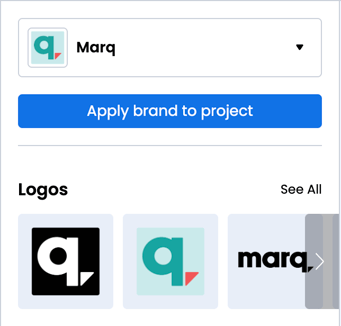
That's it. You can swap brand kits as many times as you like in the same project. Your own edits to text and other content stay in place when you swap.
Apply branding automatically with a deep link
If you build links into Marq from another tool (your CRM, an internal portal, a campaign tool), you can have the brand kit apply automatically when the project opens.
Add ?brand_it=true to the end of any editNew link:
https://app.marq.com/editNew/<template_id>?brand_it=true
When the user opens that link, Marq will apply branding based on these rules, in order:
- If the user has access to the account's default brand kit, that one is applied.
- If not, Marq applies the first brand kit they have access to, alphabetically.
- If the user only has access to one brand kit, that one is applied.
This is helpful for workflows where the user shouldn't have to think about brand selection — for example, sending a sales rep a pre-branded co-brandable one-pager from your CRM.
How to check if a template is Smart Brand Mapped
Brand swapping only changes elements that are mapped. To confirm a template is set up:
- From the Templates page, open the template settings and click Edit the design.
- Open Smart Brand Mapping settings.
- Click any element on the page. If it shows a brand attribute (e.g., "Primary Color"), it's mapped.
If your template is not yet Smart Brand Mapped, ask your Template Admin to map the elements you want to pick up brand styling.
Tips and best practices
- Working with multiple clients? Open one project, swap brand kits as you go through your edits, and export once per client. No need to duplicate the project per brand.
- Setting up an automated workflow? Pair ?brand_it=true with a sales or marketing automation that hands users a link. They land on a project that's already on-brand for them.
- Restricted users in a multi-brand account? The deep link's alphabetical fallback means a user only assigned to certain brand kits still gets a sensible default. Name your brand kits with that in mind if order matters to you.
Things to know
- This only works on Smart Brand Mapped templates. Unmapped elements won't change when you swap brands.
- You can only apply brand kits you have access to. Account Owners and Template Admins control assignments.
- Swapping brands does not remove your text edits or any content you added. It only re-applies brand attributes (colors, logos, fonts).
- The ?brand_it=true parameter currently applies the default brand kit (or fallback). It does not yet support applying a specific named brand kit by deep link.
Related articles